
If someone on your team spends Monday morning opening PDF invoices and retyping supplier names, invoice numbers, dates and totals into a spreadsheet, you are paying skilled people to do a machine’s job. It is slow, it is boring, and it is where small mistakes creep in: a transposed digit, a missed invoice, a duplicate payment.
The good news is that invoice data entry is one of the easiest back-office tasks to automate. In this guide you will learn how automated invoice capture works, which approach fits your business, what a simple Python version looks like, and what it realistically costs and saves.
Why manual invoice entry is costing you more than you think
Invoice entry feels cheap because it happens in small chunks: five minutes here, ten minutes there. Added up over a month, it is a different story. A 2025 survey of 500 U.S. professionals, run by document-automation company Parseur with QuestionPro, found that respondents spent more than nine hours a week moving data from emails, PDFs and spreadsheets into other systems, and estimated the cost at roughly $28,500 per employee per year. Treat vendor-funded numbers with some caution, but the direction matches what most finance and operations teams tell me.
The hidden costs are usually bigger than the time:
| Hidden cost | What happens | How automation fixes it |
|---|---|---|
| Errors | A wrong total or due date flows into your accounts, cash-flow forecast and reports | Fields are extracted the same way every time and totals are checked automatically |
| Duplicates | The same invoice arrives by email and post, and gets paid twice | Repeated invoice numbers are flagged before payment |
| Late payments | Invoices wait in an inbox until someone has time, so discounts are missed or late fees added | New invoices are captured within the hour, with due dates in one list |
| No visibility | You can’t see what you owe, to whom, or how supplier costs are trending | Every invoice lands in one register that feeds a dashboard |
What “automated invoice data entry” actually means
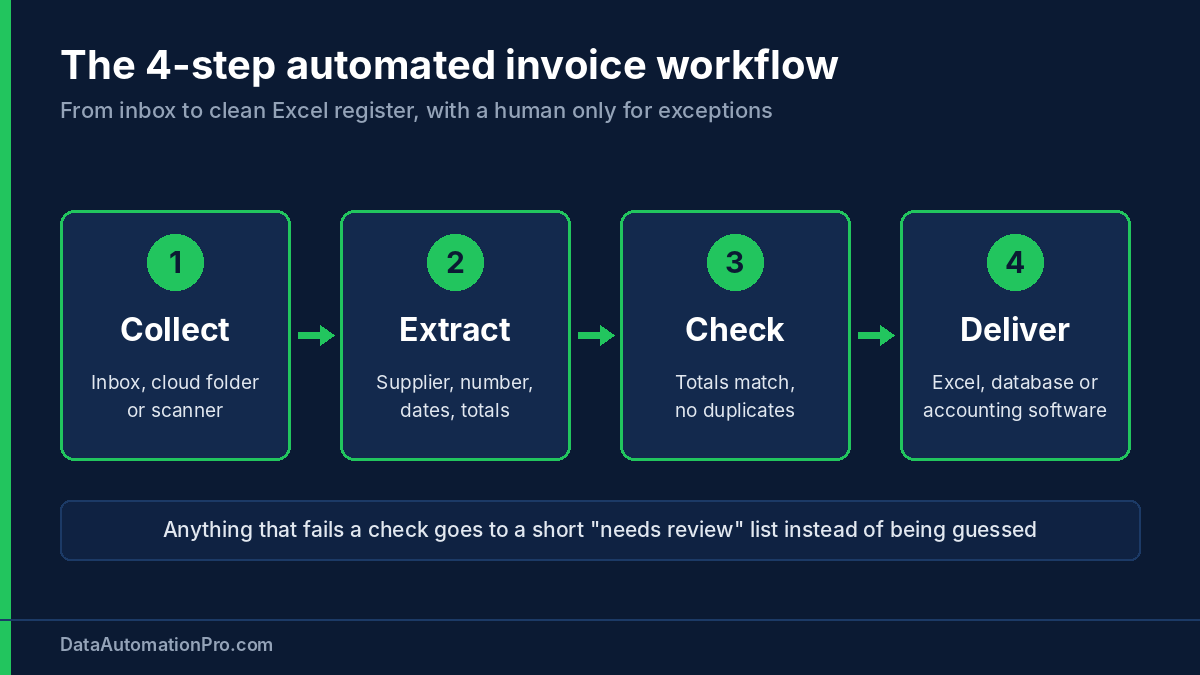
An automated invoice workflow does four jobs that a person does today:
- Collect the invoices: from a shared inbox, a cloud folder, or a scanner.
- Extract the key fields: supplier, invoice number, invoice date, due date, subtotal, tax, total, and sometimes line items.
- Check the results: totals add up, the invoice is not a duplicate, the supplier is known.
- Deliver clean rows into Excel, Google Sheets, a database, or your accounting software, and flag anything that needs a human.
The extraction step is where the approaches differ.
Three ways to automate invoice extraction
| Approach | Best for | Strengths | Watch out for |
|---|---|---|---|
| Rule-based (Python + text patterns) | A handful of regular suppliers with consistent, digital PDFs | Fast, cheap to run, fully predictable | Needs a rule per layout; breaks when a supplier redesigns their invoice |
| AI extraction (language model reads the invoice) | Many suppliers, varied layouts, some scanned documents | Handles new layouts without new rules; can pull line items | Must be validated; costs per document if you use a cloud API |
| Off-the-shelf invoice software | Teams that want a ready-made screen and are happy with a monthly fee | Quick to start, vendor support | Subscription costs grow with volume; less control over your data and workflow |
In practice, the most reliable setups are hybrids: simple rules for your top suppliers, AI for everything else, and validation checks on every single invoice.
A practical example: PDF invoices to Excel with Python
Here is a simplified version of the kind of script I build for clients. It reads every PDF in a folder, pulls out the main fields, flags anything it is unsure about, and saves the results to an Excel file your team can open. It uses three free, widely used Python libraries: pdfplumber for reading PDFs, pandas for the table, and openpyxl for writing Excel.
# pip install pdfplumber pandas openpyxl
import re
from pathlib import Path
import pdfplumber
import pandas as pd

INVOICE_FOLDER = Path("invoices")

PATTERNS = {
    "invoice_number": r"Invoice\s*(?:No\.?|Number|#)\s*[:\-]?\s*([A-Z0-9\-\/]+)",
    "invoice_date":   r"(?:Invoice\s*)?Date\s*[:\-]?\s*(\d{1,2}[\/\-.]\d{1,2}[\/\-.]\d{2,4})",
    "total":          r"\b(?:Total\s*Due|Amount\s*Due|Total)\b\s*[:\-]?\s*[$£€]?\s*([\d,]+\.\d{2})",
}

def read_pdf_text(path):
    with pdfplumber.open(path) as pdf:
        return "\n".join(page.extract_text() or "" for page in pdf.pages)

def extract_fields(text):
    row = {}
    for field, pattern in PATTERNS.items():
        match = re.search(pattern, text, re.IGNORECASE)
        row[field] = match.group(1).strip() if match else None
    return row

rows = []
for pdf_file in sorted(INVOICE_FOLDER.glob("*.pdf")):
    text = read_pdf_text(pdf_file)
    row = extract_fields(text)
    row["file"] = pdf_file.name
    missing = [k for k, v in row.items() if v is None]
    row["status"] = "CHECK: missing " + ", ".join(missing) if missing else "OK"
    rows.append(row)

df = pd.DataFrame(rows)
df["total"] = pd.to_numeric(df["total"].str.replace(",", ""), errors="coerce")

# Flag possible duplicates (same invoice number seen more than once)
df["duplicate"] = df.duplicated("invoice_number", keep=False) & df["invoice_number"].notna()

df.to_excel("invoice_register.xlsx", index=False)
print(f"Processed {len(df)} invoices, {(df['status'] != 'OK').sum()} need review.")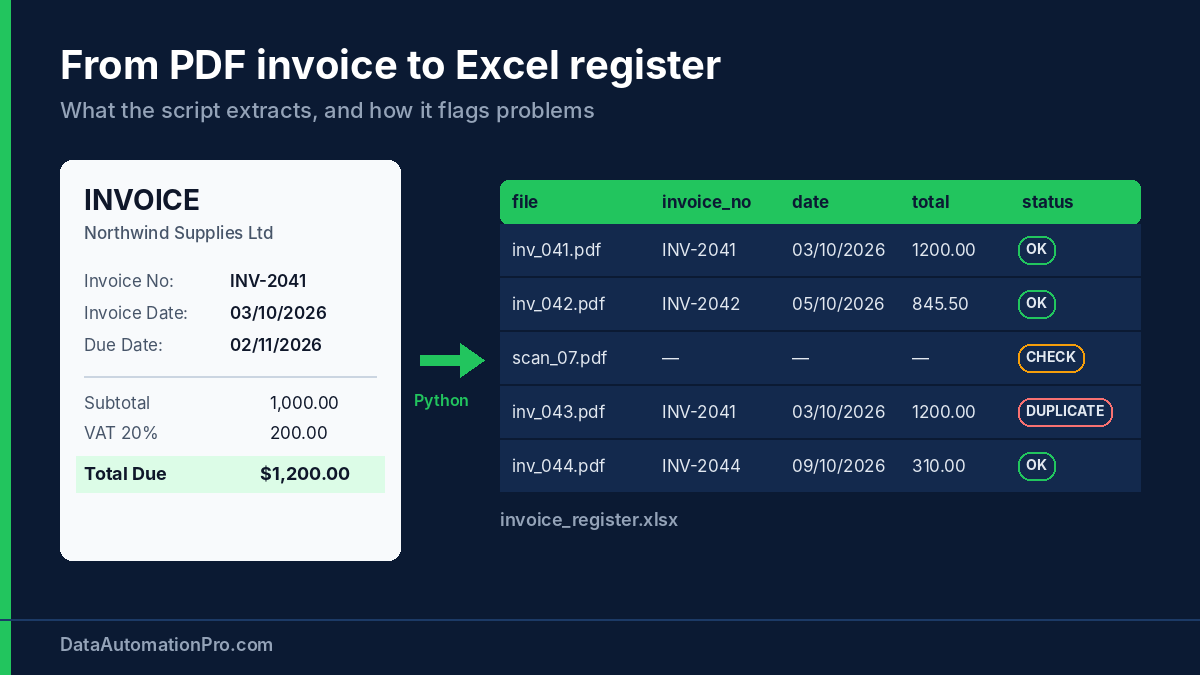
A few things make this useful rather than a toy:
- It never guesses silently. If a field is missing, the row is marked for review instead of being left blank.
- It catches duplicates before they turn into double payments.
- It is easy to extend. Add a pattern for due dates, VAT numbers or purchase-order numbers as you need them.
Note that pdfplumber only reads PDFs that contain real text. Scanned paper invoices are images, so they need an OCR step (optical character recognition) first, or an AI model that can read images.
Adding AI for messy or unfamiliar invoices
When you deal with dozens of suppliers, writing a rule for each one stops making sense. That is where a language model helps: you give it the invoice text and ask for the fields back in a fixed structure. If privacy matters, the model can run on your own computer or server with a tool like Ollama, so invoices never leave your network. A minimal version looks like this:
# pip install ollama   (requires Ollama running locally with a model pulled)
import json
import ollama

PROMPT = """Extract these fields from the invoice text and reply with JSON only:
supplier, invoice_number, invoice_date (YYYY-MM-DD), due_date, currency, subtotal, tax, total.
Use null for anything not present. Do not invent values.

Invoice text:
{text}"""

def ai_extract(text, model="llama3.1"):
    response = ollama.chat(
        model=model,
        messages=[{"role": "user", "content": PROMPT.format(text=text)}],
        format="json",
    )
    return json.loads(response["message"]["content"])
The important part is what happens next: never trust AI output blindly. A good pipeline checks that subtotal plus tax equals the total, that the date is a real date, and that the supplier exists in your list. Anything that fails goes to a short review queue. In my experience, this “AI plus checks” design is what turns a clever demo into something an accounts team can rely on every day.
What a finished workflow looks like
For a typical small or mid-sized business, the end result is something like this:
- Suppliers keep emailing invoices to your accounts inbox. Nothing changes for them.
- Attachments are saved automatically to a folder on a schedule, for example every hour.
- The script extracts the fields, runs the checks, and adds new rows to an invoice register in Excel or a database such as PostgreSQL.
- A reviewer opens a short “needs checking” list instead of a pile of PDFs.
- A Power BI or Excel dashboard shows what is due this week, spend by supplier, and overdue items.
What does it cost, and is it worth it?
A focused invoice automation for one team is usually a small, fixed-scope project rather than a big IT programme. The running costs are low: the rule-based version costs almost nothing to run, and a local AI model avoids per-document fees. The main questions to estimate payback are simple:
- How many invoices do you handle each month?
- How many minutes does each one take today, including checking and fixing mistakes?
- What is that person’s hourly cost?
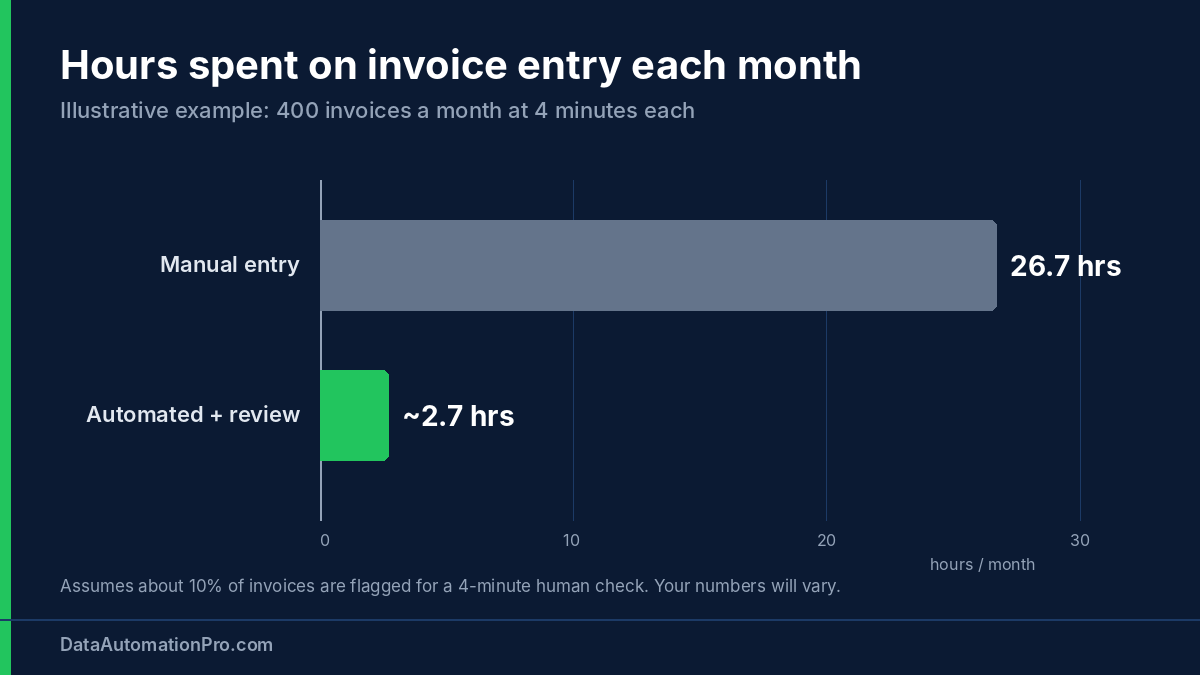
Here is a worked example for a typical small finance team:
| Item | Manual | Automated |
|---|---|---|
| Invoices per month | 400 | 400 |
| Minutes of hands-on work per invoice | 4 | 4, but only for the ~10% flagged for review |
| Invoices touched by a person | 400 | ~40 |
| Hours per month | ~26.7 | ~2.7 |
| Hours saved per month | ~24 |
That time goes back to work that actually needs a person.
How to get started this week
- Collect a sample. Pull 20 to 30 recent invoices from your most common suppliers, including a couple of awkward ones.
- List the fields you need. Header fields only, or line items too? Which system does the data need to end up in?
- Decide where review happens. Someone should own the “needs checking” list.
- Start small. Automate your top five suppliers first, prove the time saving, then expand.
Frequently asked questions
Can automation read scanned or photographed invoices?
Yes. Scanned invoices need an OCR step or an AI model that reads images. Accuracy depends on scan quality, so validation checks and a review queue matter even more.
Is AI invoice extraction accurate enough for accounting?
On its own, not always. Combined with automatic checks (totals add up, no duplicates, known supplier) and human review of flagged items, it is reliable enough for daily use.
Will my invoice data be sent to a third party?
It does not have to be. Rule-based scripts and locally hosted AI models such as those run through Ollama keep documents on your own machines.
Can the data go straight into my accounting software?
Often, yes. Many accounting platforms accept imports or have APIs. A common first step is a clean Excel register that your team imports, followed by a direct connection once the process is proven.
Do I need to change how suppliers send invoices?
No. The automation works with the invoices you already receive, usually from an existing inbox or folder.
Let’s automate your invoice entry
I’m Rashed Khan, a Top Rated freelance data automation specialist. I build practical automations for businesses in the US, UK, Canada and Europe using Excel/VBA, Python, Power BI and AI pipelines. If your team is still retyping invoices, I can review a sample of your documents, recommend the simplest reliable approach, and build a workflow that saves your team hours every week.
Get in touch for a free consultation and tell me how many invoices you handle and where the data needs to go.