
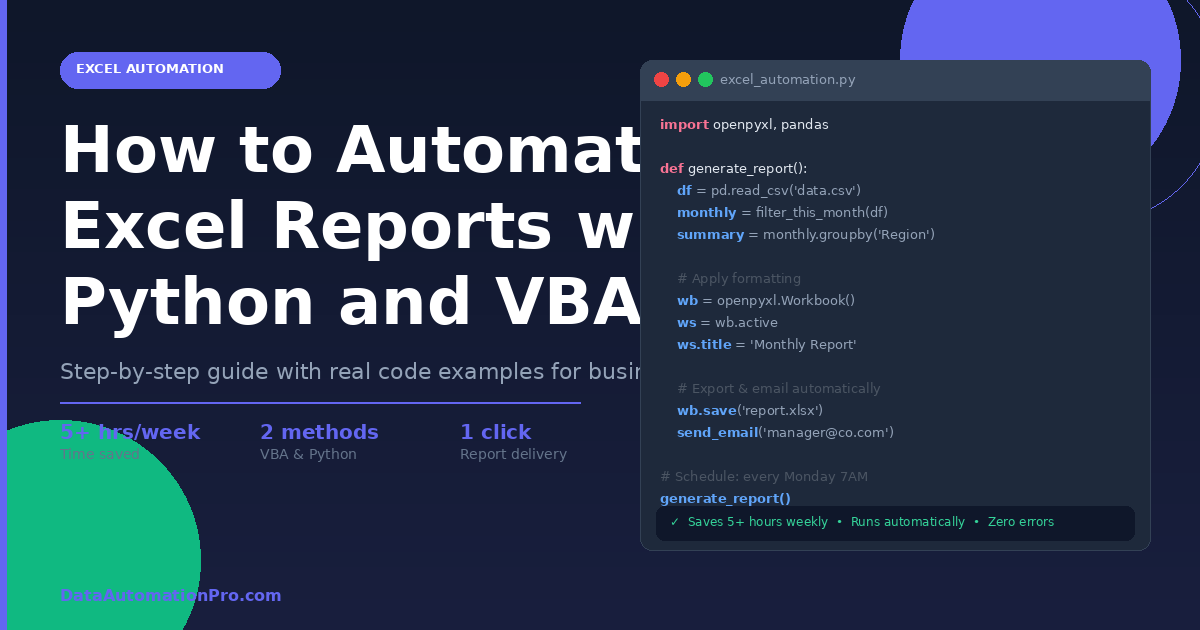
Every business needs to automate Excel reports — but most teams are still doing it manually, wasting hours every week on the same spreadsheets.
And in most businesses, that someone is spending hours copying data, formatting cells, and building the same spreadsheet they built last week. Manually.
If that sounds familiar, this guide is for you.
In this post, you will learn exactly how to automate Excel reports using both VBA macros and Python — two of the most powerful tools available to business teams today. By the end, you will know which approach fits your situation and how to get started immediately.
Why Automating Excel Reports Matters for Your Business
Before diving into the how, it is worth understanding the scale of the problem.
According to a McKinsey study, knowledge workers spend roughly 20% of their working hours on tasks that could be automated — including data gathering, formatting, and reporting. For a 10-person finance or operations team, that is two full-time positions worth of effort. A well-built automation system handles the same work in seconds.
However, beyond time savings, manual reporting creates a second problem: errors. Every manual step is a chance for mistakes. Copying data, applying formulas, formatting tables — each one carries risk. In financial reporting, a single misplaced formula can produce figures that lead to bad decisions. Automated reports eliminate that risk entirely — the same logic runs the same way, every single time. The fastest way to solve this is to automate Excel reports using either VBA or Python.
Method 1: How to Automate Excel Reports with VBA Macros
VBA (Visual Basic for Applications) is Microsoft’s built-in scripting language for Excel. It has been part of Office since 1993 and remains one of the most widely used automation tools in business environments worldwide. VBA is the most common way businesses automate Excel reports without any external tools.
What VBA Can Do
VBA macros can automate virtually anything you can do manually in Excel:
- Pull data from multiple sheets and consolidate it into one summary
- Apply formatting, colors, borders, and fonts automatically
- Generate charts and pivot tables from raw data
- Filter, sort, and calculate based on rules you define
- Save and export completed reports as PDF or new Excel files
- Send the finished report via Outlook email — automatically
A Simple VBA Example: Auto-Generate a Monthly Summary Report
Here is what a basic report automation macro looks like:
Sub GenerateMonthlyReport()

    ' Step 1: Reference the source data sheet
    Dim wsData As Worksheet
    Dim wsReport As Worksheet
    Set wsData = ThisWorkbook.Sheets("Raw Data")
    Set wsReport = ThisWorkbook.Sheets("Monthly Report")

    ' Step 2: Clear the previous report
    wsReport.Cells.ClearContents

    ' Step 3: Copy this month's data to the report sheet
    Dim lastRow As Long
    lastRow = wsData.Cells(wsData.Rows.Count, 1).End(xlUp).Row

    wsData.Range("A1:F" & lastRow).Copy
    wsReport.Range("A1").PasteSpecial xlPasteValues

    ' Step 4: Calculate totals
    wsReport.Range("G2:G" & lastRow).Formula = "=D2*E2"
    wsReport.Range("G" & lastRow + 1).Formula = "=SUM(G2:G" & lastRow & ")"

    ' Step 5: Apply professional formatting
    With wsReport.Range("A1:G1")
        .Interior.Color = RGB(30, 58, 95)
        .Font.Color = RGB(255, 255, 255)
        .Font.Bold = True
    End With

    ' Step 6: Export as PDF to desktop
    Dim pdfPath As String
    pdfPath = Environ("USERPROFILE") & "\Desktop\Monthly_Report_" & Format(Now, "YYYYMM") & ".pdf"
    wsReport.ExportAsFixedFormat xlTypePDF, pdfPath

    ' Step 7: Send via Outlook
    Dim olApp As Object
    Dim olMail As Object
    Set olApp = CreateObject("Outlook.Application")
    Set olMail = olApp.CreateItem(0)

    With olMail
        .To = "manager@company.com"
        .Subject = "Monthly Report — " & Format(Now, "MMMM YYYY")
        .Body = "Please find this month's report attached."
        .Attachments.Add pdfPath
        .Send
    End With

    MsgBox "Report generated and sent successfully!", vbInformation

End Sub
As a result, this single macro replaces what might take a team member 45–60 minutes to do manually — and it runs in under 10 seconds.
At DataAutomationPro, we specialise in Excel & VBA Automation for businesses of all sizes.
When VBA is the Right Choice
For example, VBA works best when:
- Your team works entirely within Microsoft Excel and Office
- You need reports generated by non-technical users (one button click)
- Your data lives in Excel files, not external databases
- You want automation that runs inside the spreadsheet itself
- Speed of deployment matters — VBA can be built and tested quickly
You can find the full VBA reference in Microsoft’s official documentation.
Method 2: How to Automate Excel Reports with Python
Python has become the language of choice for data professionals worldwide. Libraries like openpyxl, xlwings, and pandas give Python developers complete control over Excel files — often handling tasks that would be extremely complex in VBA.
What Python Can Do That VBA Cannot
Python takes the ability to automate Excel reports several steps further. Furthermore, Python extends Excel automation into territory that VBA simply cannot reach efficiently:
- Connect to databases (SQL Server, MySQL, PostgreSQL) and pull live data
- Call REST APIs to fetch data from Salesforce, HubSpot, Google Analytics, or any web service
- Process tens of thousands of rows in seconds
- Apply machine learning models to forecast or classify data
- Schedule reports to run automatically at any time using Task Scheduler or a cloud server
- Generate multiple reports for different recipients with personalized content
A Python Example: Generate and Email an Excel Sales Report
import pandas as pd
import openpyxl
from openpyxl.styles import Font, PatternFill, Alignment
from openpyxl.chart import BarChart, Reference
import smtplib
from email.mime.multipart import MIMEMultipart
from email.mime.base import MIMEBase
from email import encoders
from datetime import datetime

# Step 1: Load data from CSV or database
df = pd.read_csv("sales_data.csv")

# Step 2: Filter this month's data
current_month = datetime.now().month
df["OrderDate"] = pd.to_datetime(df["OrderDate"])
monthly_df = df[df["OrderDate"].dt.month == current_month]

# Step 3: Create summary by region
summary = monthly_df.groupby("Region").agg(
    Revenue=("Revenue", "sum"),
    Orders=("OrderID", "count"),
    AvgOrderValue=("Revenue", "mean")
).reset_index()

# Step 4: Write to Excel with professional formatting
wb = openpyxl.Workbook()
ws = wb.active
ws.title = "Monthly Sales Report"

# Header row
headers = ["Region", "Total Revenue ($)", "Total Orders", "Avg Order Value ($)"]
header_fill = PatternFill("solid", fgColor="1E3A5F")
header_font = Font(color="FFFFFF", bold=True, size=11)

for col, header in enumerate(headers, 1):
    cell = ws.cell(row=1, column=col, value=header)
    cell.fill = header_fill
    cell.font = header_font
    cell.alignment = Alignment(horizontal="center")

# Data rows
for row_idx, row in summary.iterrows():
    ws.cell(row=row_idx+2, column=1, value=row["Region"])
    ws.cell(row=row_idx+2, column=2, value=round(row["Revenue"], 2))
    ws.cell(row=row_idx+2, column=3, value=row["Orders"])
    ws.cell(row=row_idx+2, column=4, value=round(row["AvgOrderValue"], 2))

# Step 5: Add a bar chart
chart = BarChart()
chart.title = "Revenue by Region"
data = Reference(ws, min_col=2, min_row=1, max_row=ws.max_row)
chart.add_data(data, titles_from_data=True)
ws.add_chart(chart, "F2")

# Step 6: Save the file
filename = f"Sales_Report_{datetime.now().strftime('%Y_%m')}.xlsx"
wb.save(filename)
print(f"Report saved: {filename}")

# Step 7: Email the report
def send_report(filepath, recipient):
    msg = MIMEMultipart()
    msg["From"] = "automation@company.com"
    msg["To"] = recipient
    msg["Subject"] = f"Monthly Sales Report — {datetime.now().strftime('%B %Y')}"

    with open(filepath, "rb") as f:
        part = MIMEBase("application", "octet-stream")
        part.set_payload(f.read())
        encoders.encode_base64(part)
        part.add_header("Content-Disposition", f"attachment; filename={filepath}")
        msg.attach(part)

    with smtplib.SMTP("smtp.gmail.com", 587) as server:
        server.starttls()
        server.login("automation@company.com", "your_app_password")
        server.send_message(msg)
        print(f"Report sent to {recipient}")

send_report(filename, "manager@company.com")
Furthermore, this script can be scheduled to run automatically every Monday morning, every month-end, or at any interval — without anyone touching a keyboard.
See all our data automation services to find the right solution for your business.
When Python is the Right Choice
On the other hand, Python works best when:
- Your data comes from databases, APIs, or multiple external sources
- You need to process large datasets (10,000+ rows)
- You want reports scheduled and delivered automatically on a server
- Your reporting needs involve forecasting, machine learning, or advanced analytics
- You need to generate dozens of customized reports for different recipients
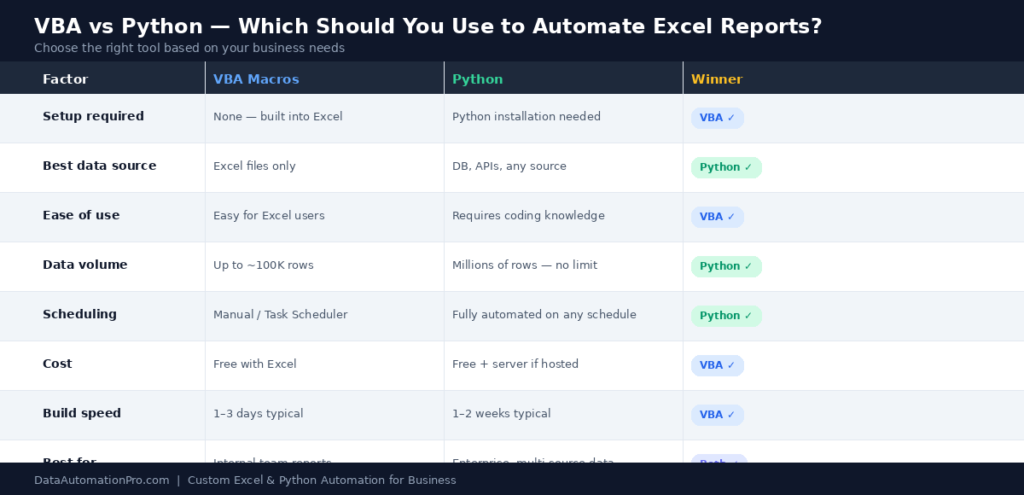
VBA vs Python: Which Should You Use?
| Factor | VBA | Python |
|---|---|---|
| Setup required | None — built into Excel | Python installation needed |
| Best for data source | Excel files | Databases, APIs, any source |
| Ease of use | Easier for Excel users | Requires programming knowledge |
| Data volume | Up to ~100K rows efficiently | Millions of rows no problem |
| Scheduling | Manual or Windows Task Scheduler | Fully automated on any schedule |
| Cost | Free with Excel | Free + server costs if hosted |
| Best for | Internal team reports, button-click automation | Enterprise reporting, multi-source data |
For most small and medium businesses, VBA is the faster and simpler solution. For businesses with more complex data needs — multiple data sources, high volumes, or external system integrations — Python is the better long-term investment.
In fact, many professional automation systems actually use both: VBA handles the Excel interface and user experience, while Python handles data extraction and processing in the background. Whether you choose VBA or Python, the decision to automate Excel reports pays for itself within weeks.
What a Real Automated Reporting System Looks Like
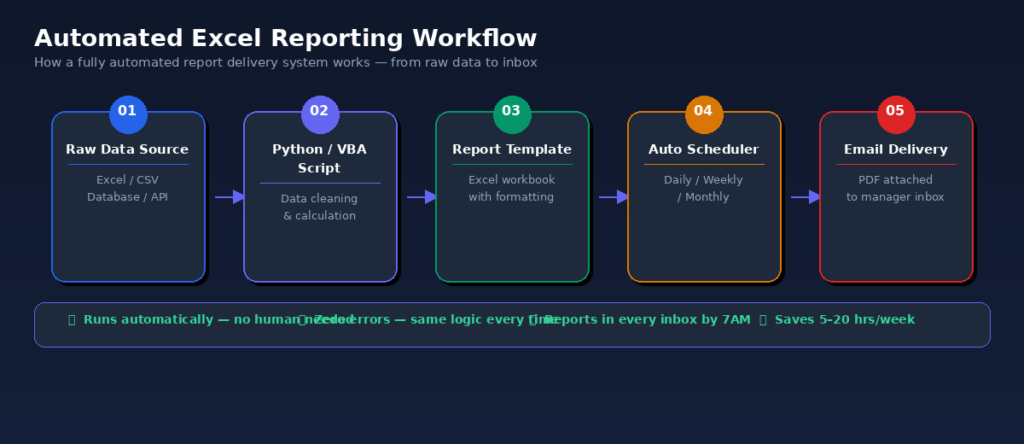
For example, here is what a fully automated monthly reporting workflow looks like for a mid-sized retail business:
- Monday 7AM — Python script runs automatically, connects to the SQL database, pulls the previous week’s sales data
- 7:02AM — Data is cleaned, calculated, and formatted into a professional Excel report template
- 7:03AM — Five separate reports are generated — one for each regional manager, each containing only their region’s data
- 7:04AM — All five reports are automatically emailed to the relevant managers with personalized subject lines
- 7:05AM — A summary dashboard updates in Power BI for the executive team
Total human time involved: zero.
Notably, before this system was built, a junior analyst spent every Monday morning — roughly 3 hours — manually building these reports. The automation paid for itself in the first month.
How Much Does Excel Report Automation Cost?
This is the question most business owners want answered upfront.
For a VBA-based automated report (single report, one data source), professional development typically takes 1–3 days and costs between $300–$800 depending on complexity.
Python-based systems take longer to build. Typically 1–2 weeks. But they handle multiple reports, database connections, and scheduled delivery automatically. And costs between $800–$2,500.
Consequently, for most businesses, the return on investment is immediate. If your team spends even 5 hours per week on manual reporting at $30/hr, that is $600/month in labor cost — every month, forever. A one-time automation investment that eliminates that pays for itself within weeks.
The best time to automate Excel reports was last year. The second best time is today.
Getting Started: Your Next Step
If you are ready to eliminate manual reporting from your business, there are two paths:
DIY path: Therefore, start by recording a basic macro in Excel while performing your normal steps. Record a macro in Excel while you perform your normal reporting steps, then review and refine the generated code. Microsoft’s official VBA documentation is an excellent resource.
Professional path: Alternatively, work with an automation specialist who can assess your exact workflow, design the right solution — VBA, Python, or a combination — and deliver a fully tested system your team can use immediately.
At DataAutomationPro, we have built over 1,500 Excel automation systems for businesses in more than 30 countries. Every solution is built from scratch around your exact workflow, data sources, and reporting requirements.
If you would like to discuss your reporting challenges and get a free consultation, we would be happy to help.
Frequently Asked Questions
Can I automate Excel reports without programming experience?
Absolutely—VBA macros can be recorded without writing a single line of code. However, for more advanced automation — custom calculations, external data sources, scheduled email delivery — programming knowledge is required, or you can hire a specialist.
How long does it take to build an automated Excel report?
A simple VBA macro for an existing report typically takes 1–2 days to build. A complete automated reporting system with Python, database connections, and scheduled delivery typically takes 1–2 weeks.
Will automated reports work with my existing Excel files?
In almost all cases, yes. A good automation system is built around your existing data structure and templates, not the other way around.
Can automated reports be sent by email automatically?
Yes. Both VBA (via Outlook) and Python (via SMTP or Gmail API) can send completed reports to any email address on any schedule.
What if my data changes every month?
That is exactly what automation is designed for. The system reads your current data every time it runs — so reports are always based on the latest figures, with no manual updates required.